Tutorial

How to use LiveCaptionN

Everything the app can do, in the order you meet it: permissions, where the sound comes from, languages, the floating caption window, translation and history. Real screenshots and a real screen recording from a Pixel 8 Pro – nothing staged.

Start in 60 seconds Watch the walkthrough Get it on Google Play
The 60-second version

You do not have to configure anything to get captions

The defaults are a complete setup. If the settings screen looks like a lot, this is all that matters:

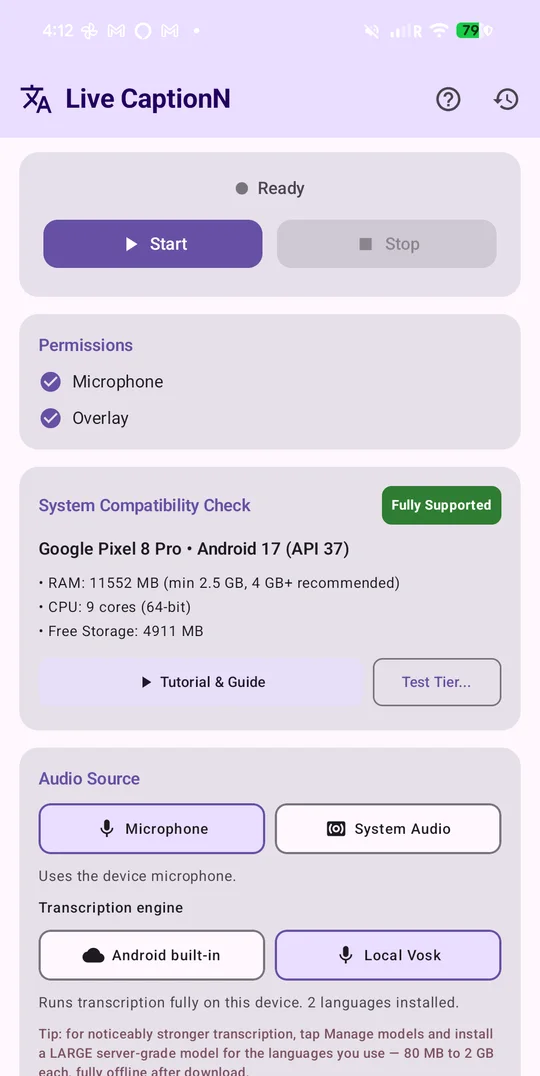
  1. Open the app and tap Grant for Microphone and Overlay.
  2. Leave Microphone and Local Vosk selected.
  3. In Languages, set Source to the language being spoken and Target to the language you want to read.
  4. Tap Start. A small caption window appears. Open any app – the captions float on top of it.
  5. Come back and tap Stop when you are done. The transcript is in History.

Everything below the Start button – models, engines, server URLs, themes – is optional tuning. You can ignore all of it on day one.

Screen recording

The whole flow in 97 seconds

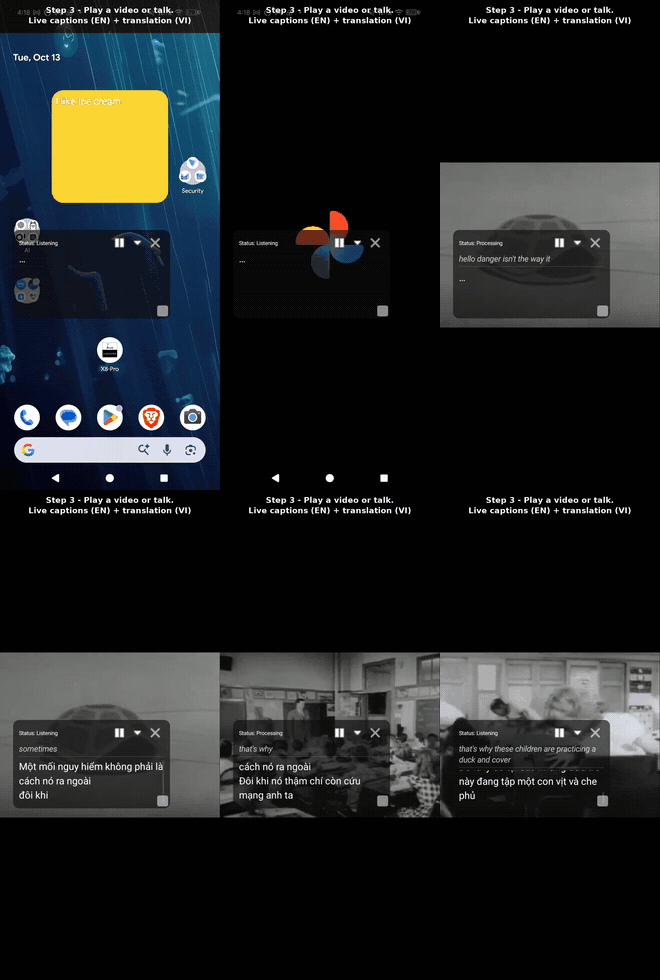
Recorded on a Pixel 8 Pro with the default settings. English speech from a video, captioned live and translated into Vietnamese on the phone.

What you are seeing

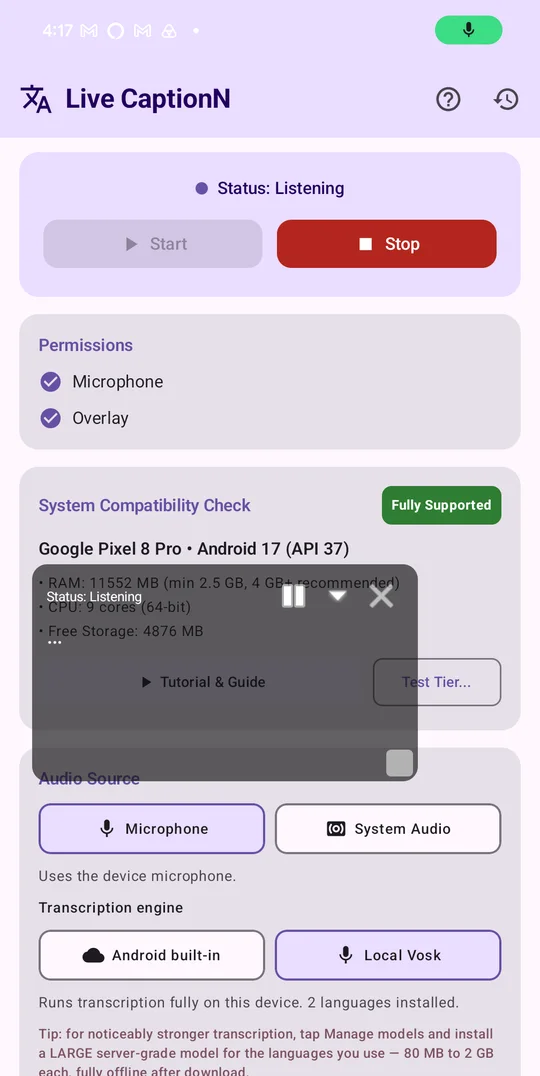
  1. 0:01 – Tap Start. The status switches to Listening.
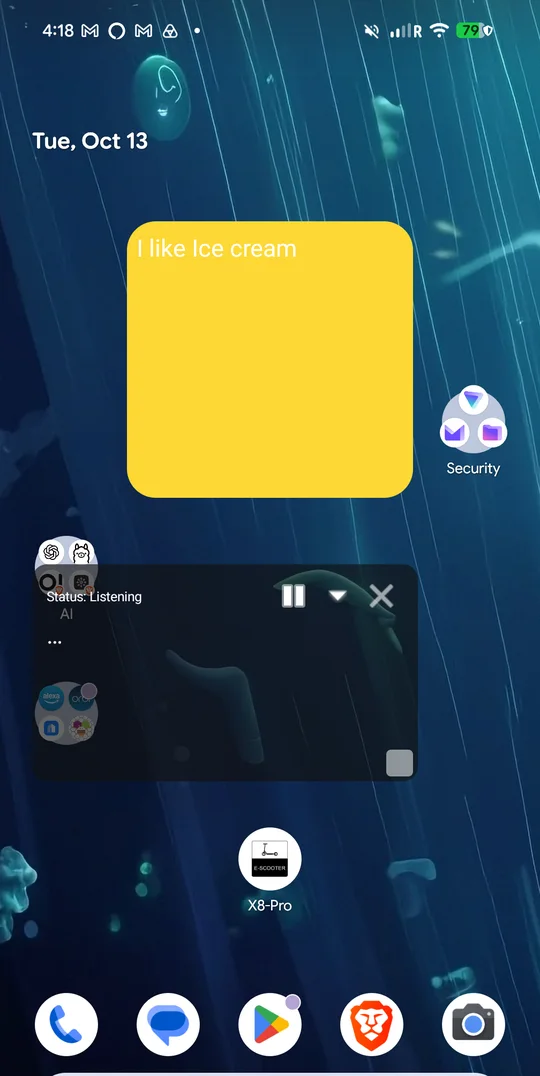
  2. 0:08 – Home screen: the caption window is already floating.
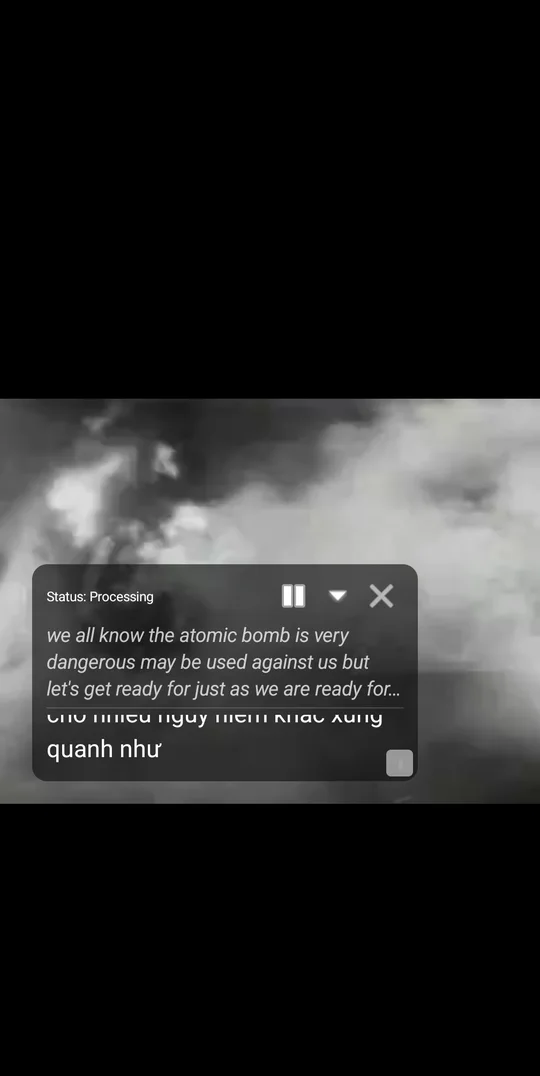
  3. 0:14 – A video plays in Google Photos. The top line is what is being said, the line under it is the Vietnamese translation, arriving while the sentence is still being spoken.
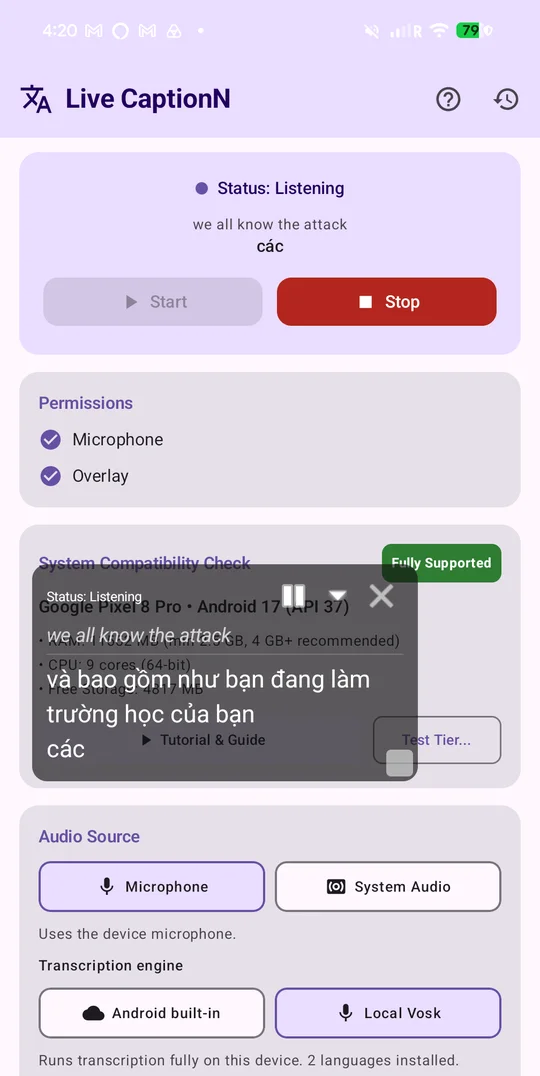
  4. 1:22 – Back in LiveCaptionN: the latest line is on the status card. Stop ends the session.
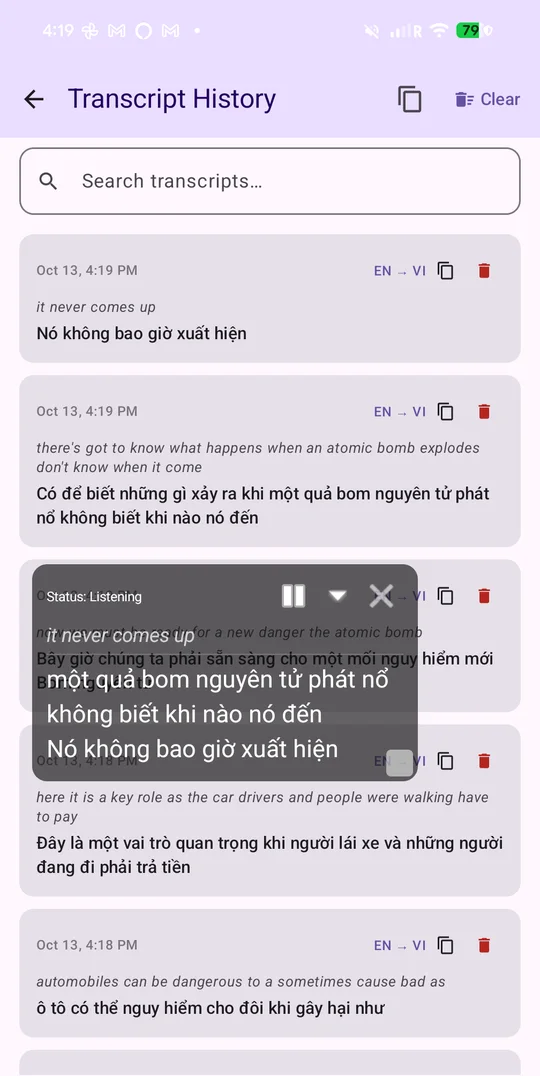
  5. 1:30 – History holds every line from the session, with copy and delete.

No audio in the recording – Android screen recordings do not include the microphone. The text on screen is the real output.

Short GIF of the captioning moment · MP4

Step by step

Every card on the screen, explained

The main screen is one long list of cards. Here is what each one does, in the order you scroll past them.

LiveCaptionN screenshot: Allow two permissions
Step 1

Allow two permissions

Open the app. In the Permissions card tap Grant next to Microphone and Overlay (Android calls it “Display over other apps”). The caption window cannot float above other apps without the overlay permission, and the mic cannot be heard without the microphone one.

The Start button stays grey until both are granted and a speech model for your source language is installed. English and Vietnamese models come built in, so on most phones Start lights up as soon as the permissions are given.

The System Compatibility Check card tells you whether your phone can run on-device recognition. “Fully Supported” means you can leave everything on the defaults.
LiveCaptionN screenshot: Pick where the sound comes from
Step 2

Pick where the sound comes from

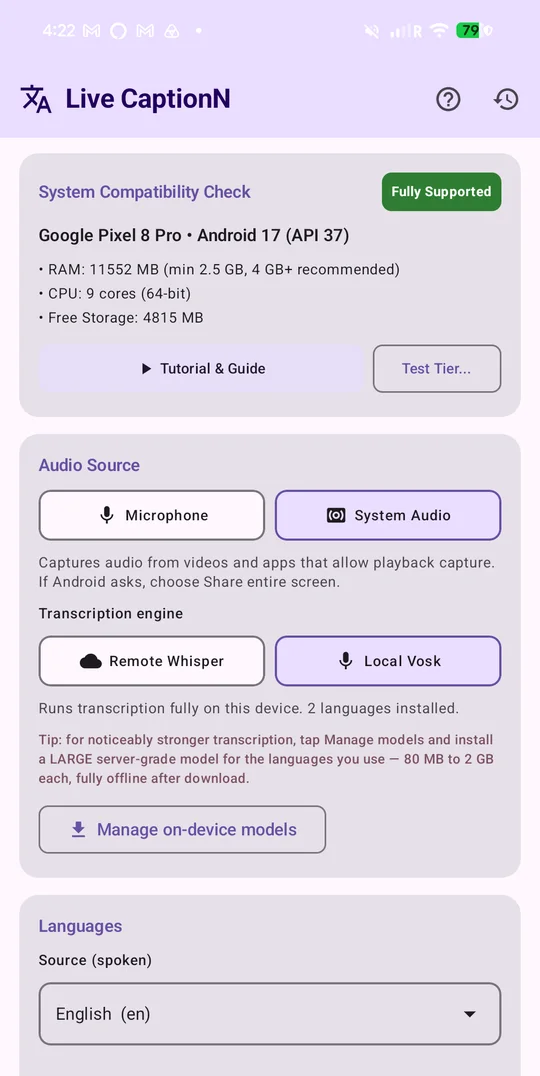
Audio Source is the first real choice:

  • Microphone – listens to the room: a person talking next to you, a TV, a meeting, a lecture.
  • System Audio – captures the sound of apps playing on the phone itself (a video, a podcast, a call-in app) without the microphone. When Android asks, choose Share entire screen. Some apps do not allow their audio to be captured; if the window stays empty, switch back to Microphone and play the sound out loud.

Below it, Transcription engine is where speech is turned into text. Local Vosk is the default and runs entirely on the phone. With Microphone you can also pick Android built-in (the phone’s own recognizer); with System Audio you can pick Remote Whisper (a Whisper server you host, see the remote setup guide). If you are not sure, keep Local Vosk.

LiveCaptionN screenshot: Check the speech model (optional)
Step 3

Check the speech model (optional)

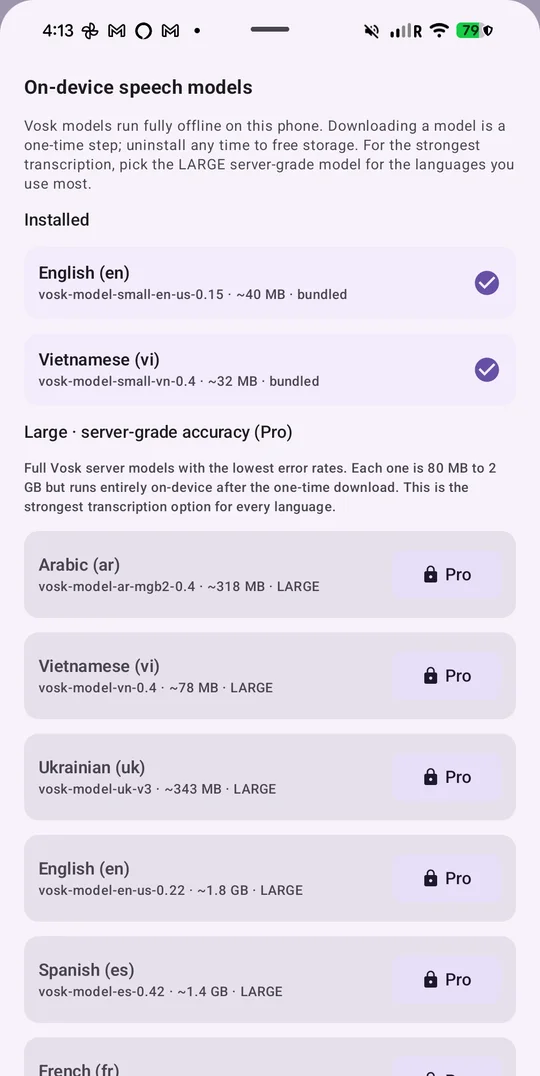
Tap Manage on-device models. The Installed list shows the Vosk models already on the phone – English and Vietnamese are bundled, about 40 MB each. You only need a model for the language that is being spoken.

Small models are quick to download and light on storage. Large server-grade models (80 MB to 2 GB) are noticeably more accurate and are part of Pro. Downloading is a one-time step; models stay on the phone and work offline, and you can uninstall any of them later to free space.

LiveCaptionN screenshot: Set the two languages
Step 4

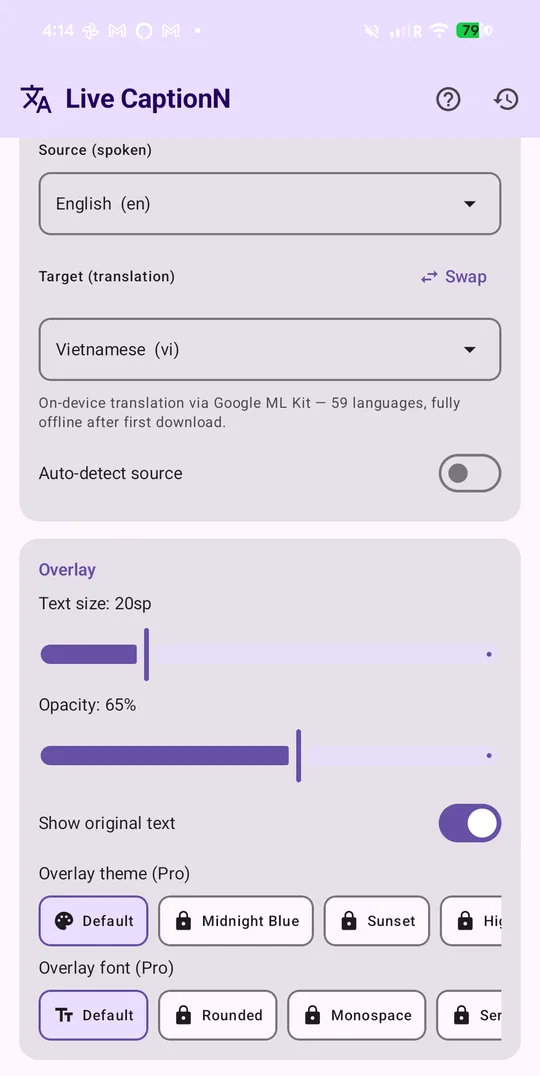
Set the two languages

In the Languages card:

  • Source (spoken) – the language people are speaking. With Local Vosk this list only shows languages whose model is installed; tap Download more languages to add one.
  • Target (translation) – the language you want to read. Pick the same language as the source if you only want captions and no translation.

Swap flips the two. Auto-detect source lets the app guess the spoken language when you are not sure. The translation list comes from Google ML Kit (59 languages) or from your LibreTranslate server.

LiveCaptionN screenshot: Use the searchable picker
Step 5

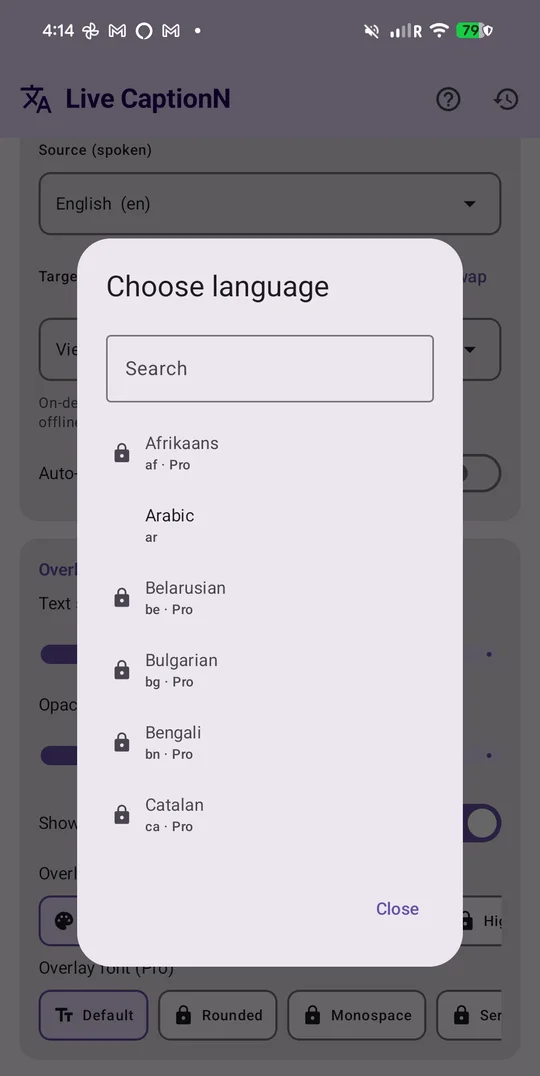
Use the searchable picker

Tapping either language opens a picker with a search box – type the first letters instead of scrolling. A lock with Pro next to a language means it is part of the Pro subscription; languages without the lock are included free.

LiveCaptionN screenshot: Make the caption window readable
Step 6

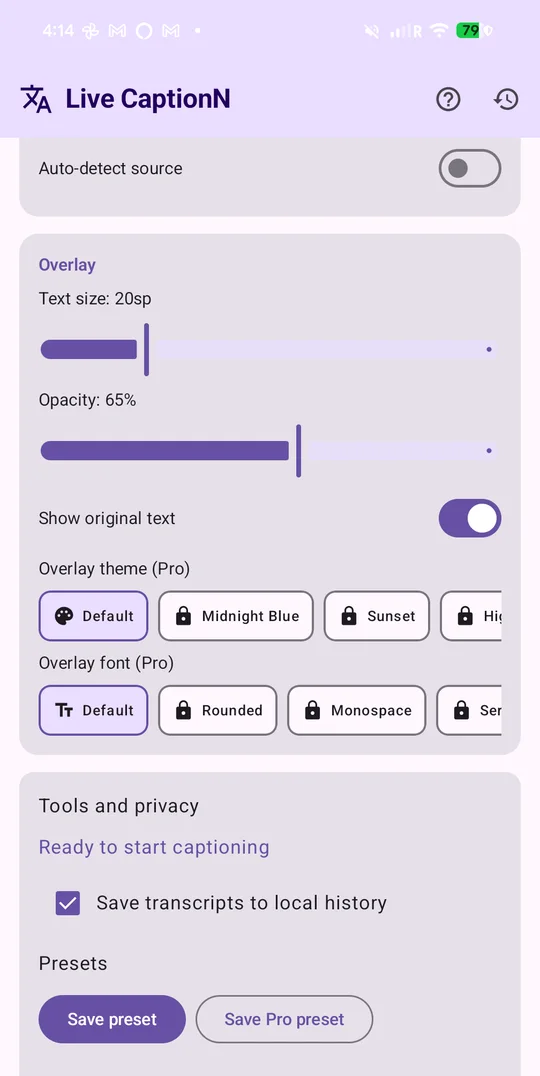
Make the caption window readable

The Overlay card controls how the floating window looks:

  • Text size and Opacity sliders.
  • Show original text – on: the window shows two lines, what was said and the translation. Off: translation only.
  • Overlay theme and Overlay font are Pro extras (Midnight Blue, Sunset, High Contrast; Rounded, Monospace, Serif).

You can change these while captioning is running; the window updates live.

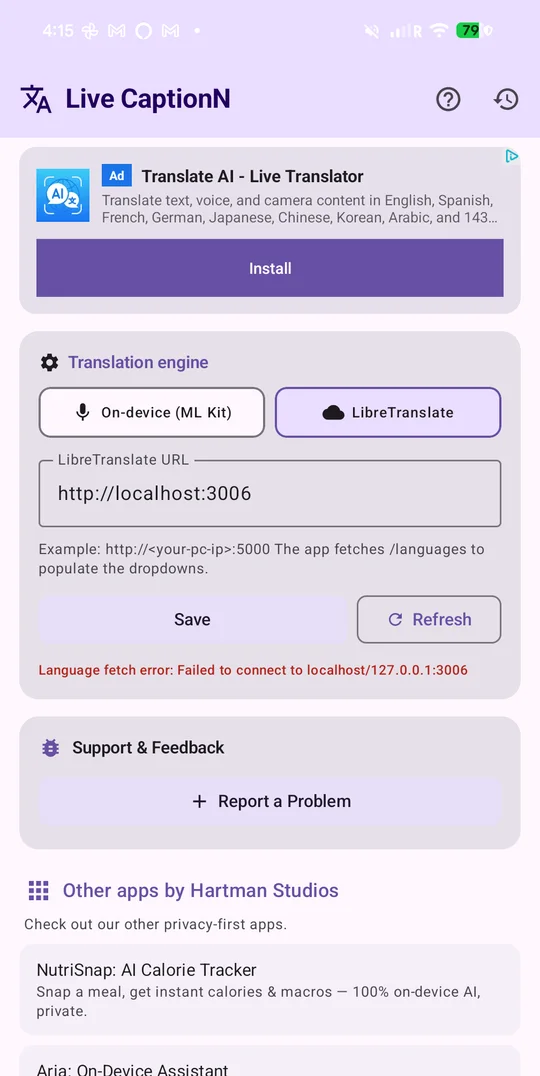
LiveCaptionN screenshot: Translation engine (the default is fine)
Step 7

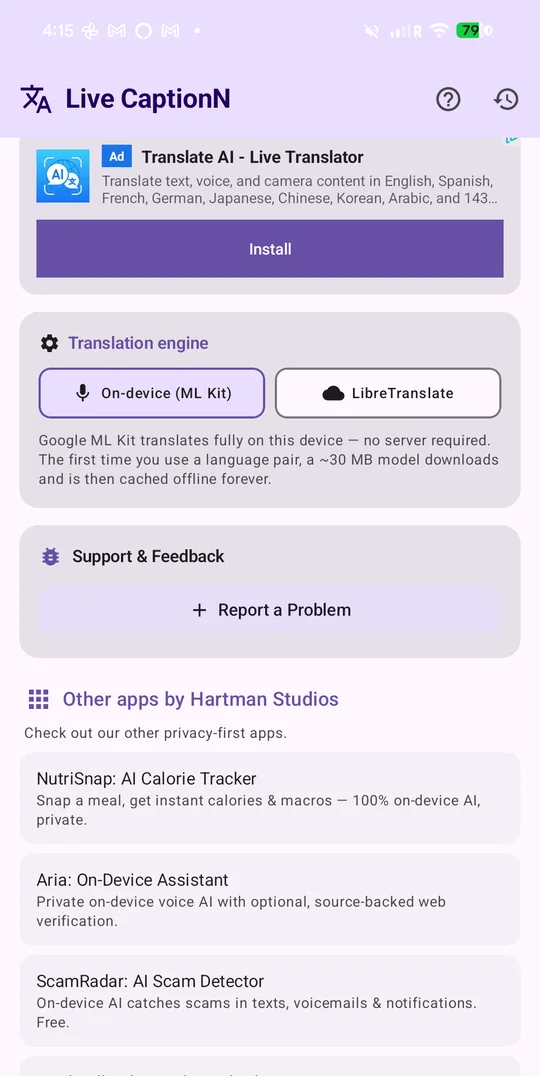
Translation engine (the default is fine)

Further down, Translation engine decides who translates the text:

  • On-device (ML Kit) – the default. Google ML Kit translates on the phone. The first time you use a language pair it downloads a ~30 MB model (you need internet once), then it works offline.
  • LibreTranslate – point the app at your own LibreTranslate server for wider language coverage.

You never need to touch this for everyday use.

LiveCaptionN screenshot: Server URLs only for self-hosters
Step 8

Server URLs only for self-hosters

If you choose LibreTranslate, a LibreTranslate URL field appears (example: http://<your-pc-ip>:5000). The app fetches /languages from it to fill the language lists; a red “Language fetch error” means the phone cannot reach that address – check the IP, the port and that both devices are on the same Wi-Fi. Remote Whisper has a matching Speech-to-Text URL field. The full Docker walkthrough is on the remote setup page.

LiveCaptionN screenshot: Tap Start
Step 9

Tap Start

Scroll back to the top and tap Start. The status changes to Listening, a persistent notification appears (Android requires one while the mic is in use) and the caption window shows up on screen.

LiveCaptionN screenshot: Go anywhere – the window follows
Step 10

Go anywhere – the window follows

Press Home, open YouTube, a meeting app, a browser – the caption window floats on top of all of them. Drag it by its bar to move it. The three buttons on it are Pause, Minimize and Close; the app remembers where you left it.

LiveCaptionN screenshot: Watch the captions arrive
Step 11

Watch the captions arrive

Words appear while they are being spoken, not after a pause. With Show original text on you get the spoken line on top and the translation underneath – here English speech translated into Vietnamese over a video playing in Google Photos. Partial lines update as the sentence completes.

LiveCaptionN screenshot: Back in the app: live text and Stop
Step 12

Back in the app: live text and Stop

Return to LiveCaptionN at any time: the top card shows the current status and the latest line. Tap Stop when you are done; the window and the notification go away.

LiveCaptionN screenshot: Everything is saved in History
Step 13

Everything is saved in History

The clock icon in the top bar opens Transcript History. Every session is stored on the phone with its language pair and time. Search it, Copy a line or Delete entries. Nothing is uploaded anywhere.

LiveCaptionN screenshot: Help inside the app
Step 14

Help inside the app

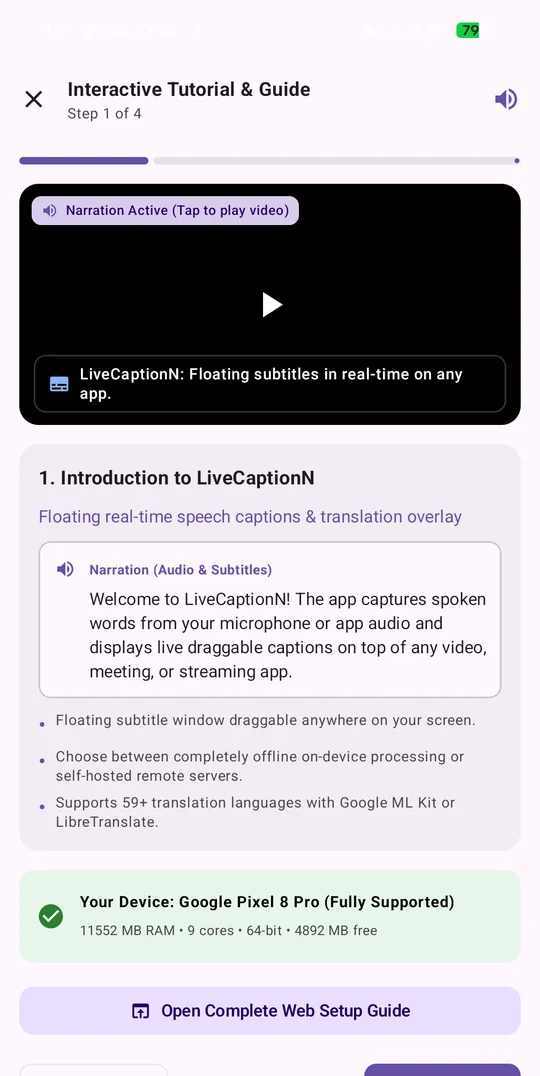
The question-mark icon opens the built-in Tutorial & Guide with a narrated setup video, the hardware requirements and the self-hosted server steps. Report a Problem (bottom of the main screen) files a bug report on the app’s public GitHub issue tracker.

Which setup is for me?

Four common situations

Just want captions now

Keep the defaults

Microphone, Local Vosk, On-device (ML Kit). Set Source and Target, tap Start. Works offline.

Watching a video on this phone

Try System Audio

Captures the app’s sound directly, no mic needed. If the app blocks capture, go back to Microphone and turn the speaker up.

Older or small phone

Remote Whisper + LibreTranslate

Run both on a computer at home with Docker and type the two URLs into the app. The phone only displays the result. Remote setup guide.

Best possible accuracy

Pro large model

Install the LARGE server-grade Vosk model for your language from Manage on-device models (80 MB – 2 GB, one-time download, fully offline).

Troubleshooting

When something does not look right

I installed it and I can’t figure out the configuration. What do I actually have to set?

Almost nothing. Grant the two permissions, leave Microphone + Local Vosk + On-device (ML Kit) as they are, make sure Source is the language being spoken and Target is the language you read, then tap Start. Every other card on the screen is optional tuning.

The Start button is greyed out.

The app shows the reason under the button: “Grant overlay/audio permissions and install the selected speech model before starting.” Check that both rows in the Permissions card say Granted, then open Manage on-device models and make sure your Source language shows as Installed. On a fresh install English and Vietnamese are already there.

I tapped Start but I don’t see any captions.

First check the status in the app says Listening. Then look for the window – it starts small near the top of the screen and can be dragged. Captions only appear when someone is speaking the Source language; in Microphone mode the phone has to hear the sound, so turn the speaker up or hold the phone closer. If you chose System Audio, the app you are listening to may block audio capture – switch to Microphone.

Captions show up but the translation line is empty or wrong.

Make sure Target is the language you want to read and Show original text is on so you can see both lines. The first time a language pair is used, ML Kit downloads a ~30 MB model, so the phone needs internet for a minute; after that it is offline. If the Source language is wrong, the recognizer will produce nonsense – set it to the language actually being spoken.

The app says my device is Unsupported or Limited.

On-device recognition and translation need roughly 2.5 GB of RAM and 4 CPU cores (4 GB and a 64-bit chip recommended). On smaller phones the app switches to Remote Whisper and LibreTranslate automatically; run those two on a computer at home with Docker and type their addresses into the app. The remote setup guide has the exact commands.

Which languages are free?

English and Vietnamese speech models are built in. In the language picker, anything without a lock is included; languages marked with a lock and Pro, the large server-grade speech models, the extra overlay themes and fonts, presets and the glossary are part of the Pro subscription. Ad-Free only removes the ads.

Does it work offline?

Yes, with the defaults: Local Vosk and ML Kit both run on the phone. You need internet only to download a speech model or a translation language the first time.

Does the app send my audio anywhere?

Not with the defaults – speech and translation stay on the phone and transcripts are stored locally. If you point the app at a Whisper or LibreTranslate server, the audio or text goes to that server, which is normally one you run yourself.

The window got stuck at the edge of the screen.

Tap Stop in the app, then Start again. If it is still stuck, restarting the phone clears it.

Still stuck? Use Report a Problem at the bottom of the app’s main screen, or open an issue on GitHub – say which phone you have and what the status card shows.

Ready to try it?

Free on Google Play. Permissions, Start, done.