DriveVault: turn your Android phone into a privacy-first dashcam
DriveVault records drives with GPS overlays, dual cameras and background recording, and keeps recordings on your phone by default.
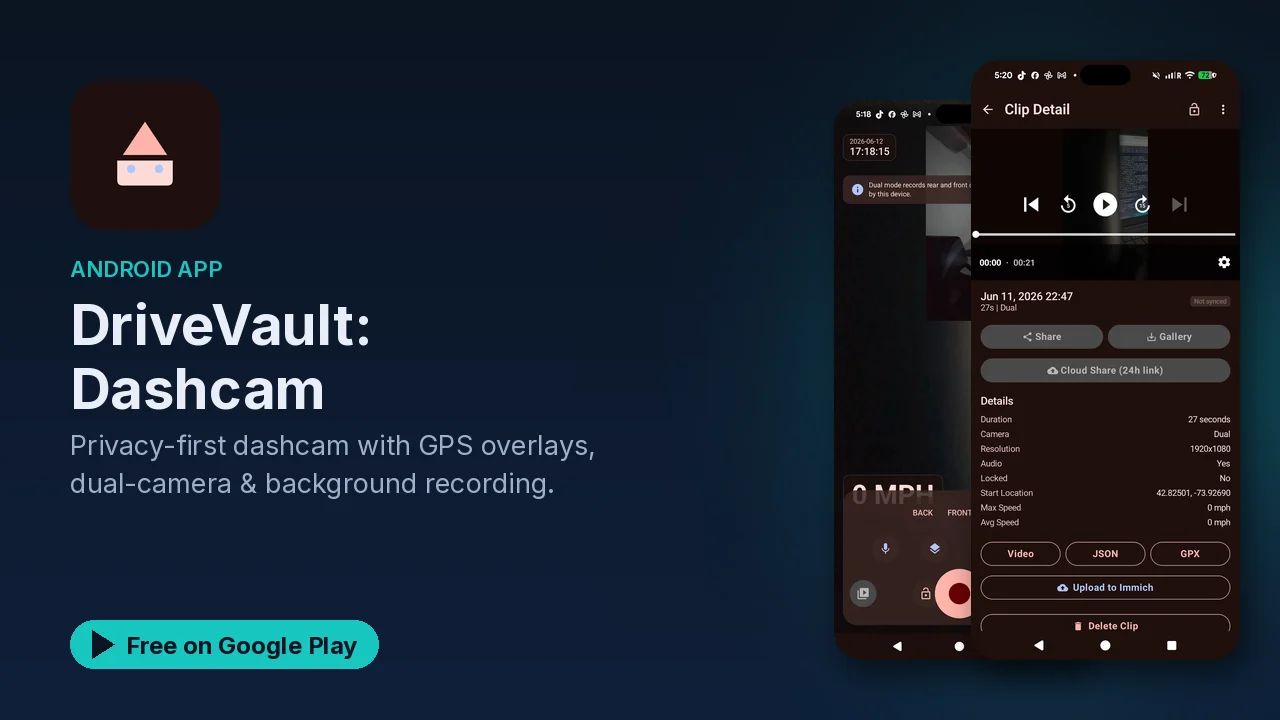
A dashcam is the kind of thing you never think about until you need footage of what happened. Many people already have a capable camera in their pocket and a phone mount in the car. DriveVault turns that phone into a dashcam, and it keeps the recordings on the device rather than uploading them by default.
What it does
Recording
- Dual camera. The front camera records the road and the rear camera records the interior or the back view, with picture-in-picture and switching between the two.
- Background recording. Recording continues with the screen off, with low battery impact according to the listing.
- Automatic start when a drive begins.
- Loop recording to save space, and a time-lapse mode.
GPS overlays
- Your speed burned into the video.
- GPS coordinates on screen.
- Altitude and heading.
- A map view of the route.
Incidents and parking
- Collision detection, with an automatic incident save so the clip that matters is kept.
- Parking mode with motion detection.
Managing footage
- One-tap controls.
- Videos organized automatically, with a gallery of all drives.
- Easy sharing and export.
How the features work together
Loop recording and incident save are the pair to understand. Loop recording keeps the phone from filling up by recycling old footage, and the automatic incident save is what protects the important clip from being recycled. With automatic recording on drive start and background recording, the app can run without you remembering to press anything, which is the whole point of a dashcam.
The GPS overlay adds context to the footage itself: speed, coordinates, altitude and heading appear on the video, and the map view shows the route you took.
Setting it up
A sensible first setup with the features listed:
- Mount the phone so the front camera has a clear view of the road.
- Turn on automatic recording on drive start, and background recording.
- Enable loop recording so storage does not fill up.
- Decide whether you want the rear camera for the interior view.
- Do a short test drive, then check the gallery and the GPS overlay.
Privacy
The listing describes DriveVault as privacy-first:
- All recordings are stored locally.
- No cloud uploads by default.
- An optional encrypted backup if you want one.
- Your drives stay on your device.
Location and video together are sensitive data. Keeping them on the phone unless you choose the encrypted backup means the record of where you drive is in your hands.
Good to know
- Price: free to download, with an optional premium upgrade mentioned in the listing.
- Ads: the app contains ads.
- Category: Tools, rated Everyone.
- Storage: video takes space; loop recording is there to manage it.
- A tool, not a guarantee: collision detection and incident save help keep footage, but set it up and test it before relying on it.
Is it for you?
- You want dashcam footage without buying a separate device.
- You want speed and GPS data on your recordings.
- You want footage to stay on your phone instead of a cloud service.
- You want parking mode with motion detection for when the car is stopped.