OctoPulse: watch and control OctoPrint from your Android phone
OctoPulse finds OctoPrint on your Wi-Fi, pairs in one tap, and puts progress, camera, temps and controls on your phone. Free, no account.
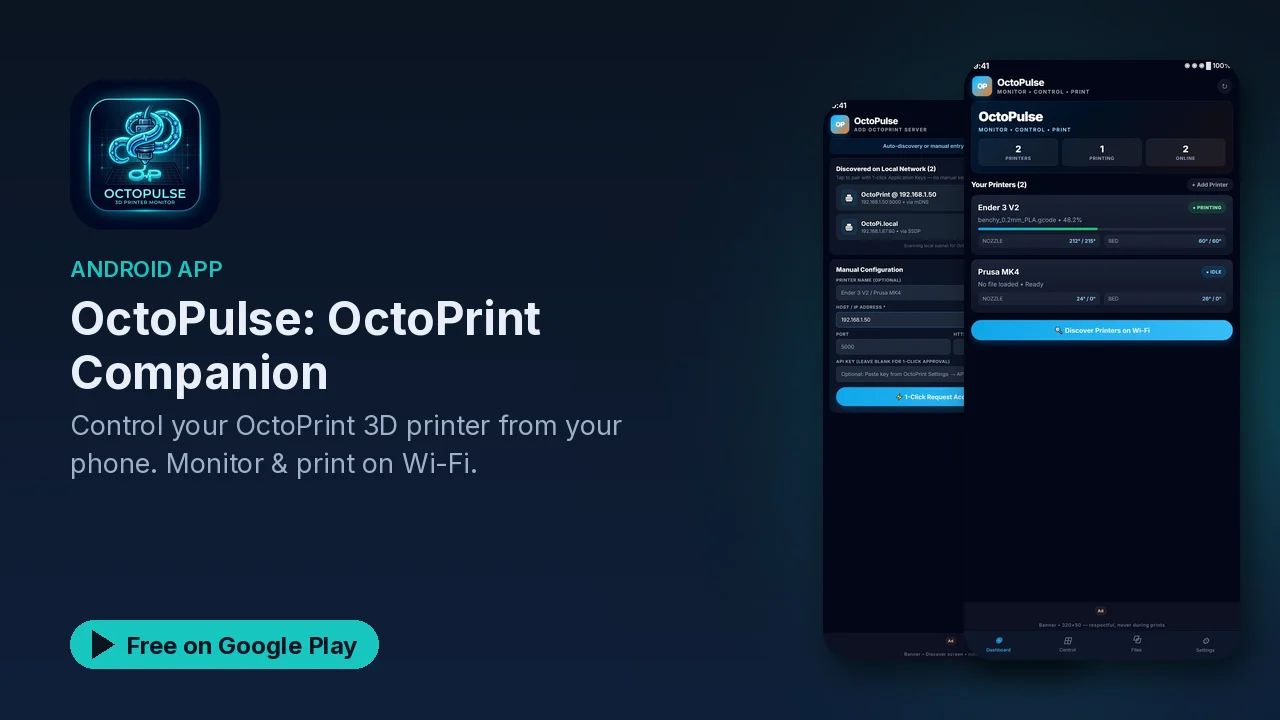
If you run OctoPrint, you know the routine: a print is going, you have walked away, and now you want to know whether the first layer stuck. Opening the web interface on a phone works, but it was not designed for a small screen. OctoPulse is a native Android companion for OctoPrint that puts the things you check most often (progress, temperatures, the camera) one tap away.
OctoPrint is the open-source web interface many people use to run a 3D printer from a Raspberry Pi or another small computer. OctoPulse talks to it over your network. It works with any printer running OctoPrint, including OctoPi on a Raspberry Pi, and the listing names Ender 3, Prusa and Bambu (with OctoPrint) as examples. The rule of thumb it gives is simple: if you can open OctoPrint in your browser, OctoPulse can connect.
What it does
- Finds your printer for you. It scans your Wi-Fi using mDNS/Bonjour, SSDP and a subnet scan, so you do not type IP addresses. It also verifies that what it found is really OctoPrint.
- Pairs without copying API keys. It uses OctoPrint's official Application Keys: tap the printer, approve the request in OctoPrint, and it is connected.
- Shows every printer on one dashboard. Status, progress percentage, time remaining, and nozzle and bed temperatures, with pull to refresh.
- Streams the camera. MJPEG or snapshot streaming, with flip, rotate and automatic reconnect.
- Gives you real control. Jog X, Y and Z, home the axes, extrude and retract, set temperatures, run the fan, hit emergency stop, or send G-code from a terminal.
- Previews G-code. A 2D and 3D layer viewer with pinch-zoom and orbit.
- Manages files. Browse what is on OctoPrint, see details, start a print or delete a file.
- Sends alerts. Notifications when a print finishes or fails, and at 25, 50, 75 and 90 percent, with per-printer toggles and background polling. It respects Do Not Disturb.
Getting started
The setup the listing describes is three steps:
- Install OctoPulse and join the same Wi-Fi network as your OctoPrint server.
- Tap Discover Printers on Wi-Fi, choose your printer, tap Pair, and approve the request inside OctoPrint.
- From there you can monitor progress, watch the camera, pause or stop if needed, and start the next print.
For access away from home, OctoPulse does not provide its own cloud relay. Instead you point it at your VPN or reverse proxy URL, and OctoPrint has to be reachable that way.
Privacy and permissions
This is where OctoPulse fits a self-hosted setup well. There is no account and no sign-up. Print files, G-code and camera feeds do not go to the developer's servers; the data stays between your phone and your printer. Hosts, API keys and camera URLs are encrypted on the device, with the keys stored using the Android Keystore.
The permissions are limited to what the features need: network and Wi-Fi state, multicast for mDNS discovery, notifications for print alerts, starting at boot to reschedule alerts, vibration, and the advertising ID for ads. It does not request location, camera or contacts. Discovery scans your local subnet only.
Good to know
- Price: free, with no subscription.
- Ads: it contains ads, a small banner plus an occasional full-screen ad after setup steps. The listing says ads are never shown during a print.
- Open source: the app is released under the MIT license.
- Look and feel: dark theme, haptics and offline handling.
- Not official: OctoPulse is not affiliated with the OctoPrint project.
Is it for you?
- You already run OctoPrint, on a Raspberry Pi or another machine.
- You want progress, temps and the camera on your phone without opening a browser.
- You run more than one printer and want them on a single dashboard.
- You would rather keep printer data on your own network than in someone's cloud.
- You already have a VPN or reverse proxy if you want to check prints remotely.