CaptionBurn: burn auto-captions into videos on your phone
CaptionBurn turns speech into captions with on-device AI, can translate them, and burns them permanently into the video so they show on any player.
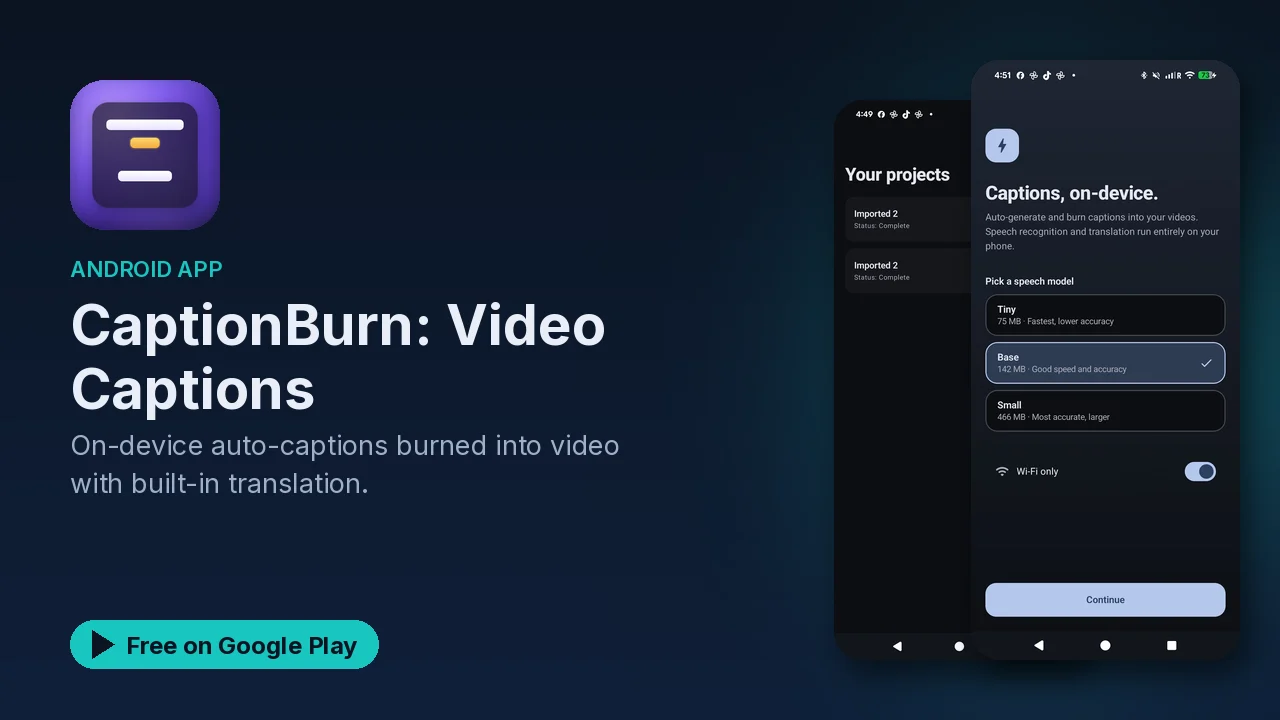
Captions make a video watchable with the sound off, and a lot of video is watched exactly that way. The catch is that separate subtitle files often get lost when you share a clip, and many captioning tools want you to upload your footage first. CaptionBurn takes a different route: it generates captions with AI on your phone and burns them directly into the video.
What it does
- Automatic captions. Speech-to-text for your videos, processed on the device, with support for multiple languages.
- Burned into the video. The captions become part of the picture itself, so there is no separate caption file and they show up on every video player.
- Built-in translation. Translate captions into multiple languages, also on the device.
- Styling. Several subtitle styles, with control over font, size, color, background and position.
- Workflow helpers. Simple import and export, batch processing, a preview before burning, and one-tap sharing.
Burned-in versus subtitle files
There are two common ways to add captions to a video. One is a separate subtitle track that a player can switch on and off. The other is "burning in", where the text is drawn into the video frames permanently.
CaptionBurn does the second. The trade-off is simple:
| Burned-in captions | Separate subtitle file | |
|---|---|---|
| Shows on any player | Yes | Only if the player supports it |
| Survives reposting and sharing | Yes | Often lost |
| Viewer can turn it off | No | Yes |
If your videos end up on social apps or in group chats, burned-in captions are the version that reliably arrives with the clip.
A simple workflow
- Import your video.
- Let the app generate captions from the speech.
- Optionally translate them into another language.
- Pick a style and adjust the font, color, size, background and position.
- Preview the result before burning.
- Burn and share with one tap.
If you have several clips, batch processing lets you work through them without repeating every step by hand.
What stays on your phone
The listing describes CaptionBurn as fully private: all processing happens on the device, no videos are uploaded anywhere, and there is no cloud processing. That also means no waiting for an upload before captions can start, which the listing calls out as part of why processing is fast. The translation step is described as on-device as well.
Good to know
- CaptionBurn is free to download, described as free with optional premium.
- Google Play marks the app as containing ads.
- It is rated Everyone, in the Video Players and Editors category.
- Because captions are burned in, keep your original file if you might want a version without captions later.
Is it for you?
- You post short videos and want them to make sense with the sound off.
- You would rather not upload your footage to a website to get captions.
- You need captions in more than one language.
- You want control over how the captions look and where they sit on screen.