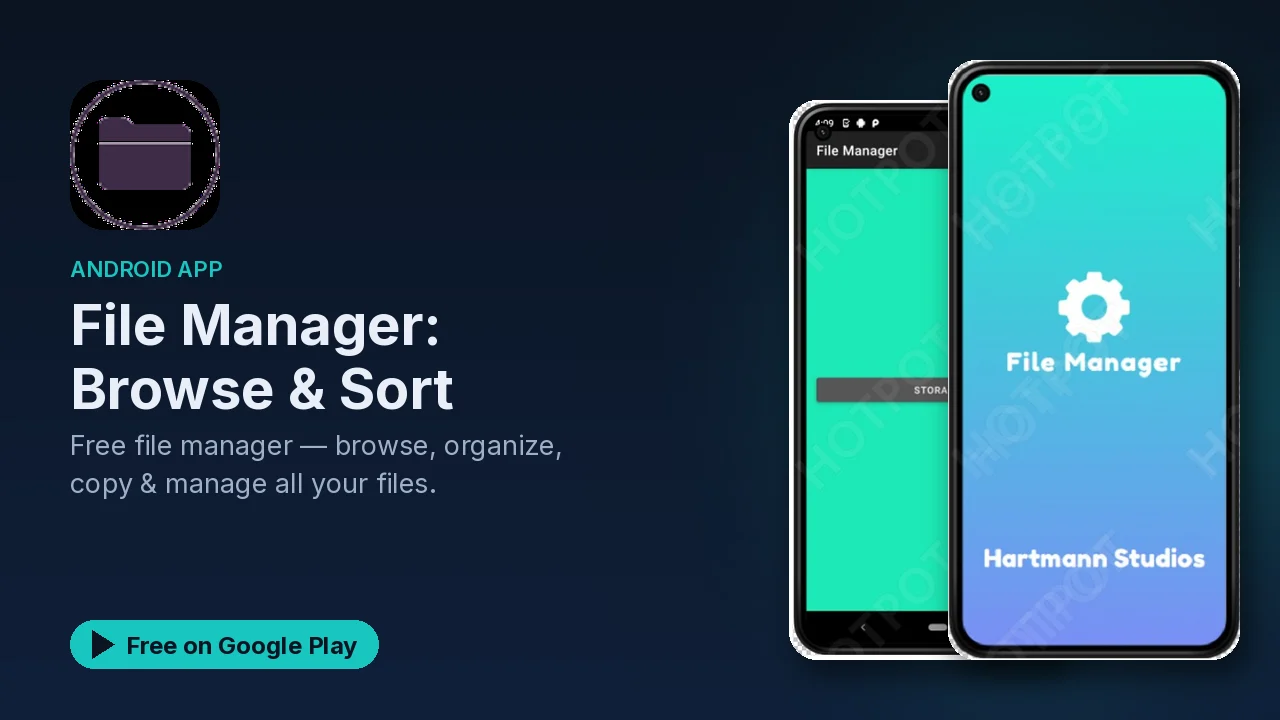
File Manager: Browse & Sort, a simple, private Android file manager
A free, simple Android file manager for browsing storage and SD cards, batch copy and move, search and filters, and all file operations happen on your device.
Your phone fills up quietly. Downloads pile up, screenshots multiply, and somewhere there is a PDF you need right now. Finding it through a dozen different apps is slow. A file manager gives you one view of what is actually on your storage, and File Manager: Browse & Sort keeps that view simple and fast.
What it does
- Browse storage: internal storage and SD cards, with quick access to Downloads, Pictures and Music.
- Basic file operations: create, rename, move and delete files and folders.
- Sorting: by name, date, size or type.
- Copy and move between folders, with batch operations for multiple files and drag-and-drop style organization.
- Clipboard history for the files you have copied.
- Search and filters: instant search across all files, filters by type, size and date, and quick access to recent files.
- Clean design: dark mode and a tablet-optimized layout.
A quick cleanup routine
A file manager is most useful when you give it ten minutes now and then. Using the features above:
- Sort by size. The biggest files float to the top, which is usually where the space went.
- Check Downloads. Old installers, receipts and duplicates tend to gather there.
- Filter by type. Look at only videos, or only documents, to decide what to keep.
- Batch move or delete. Select several files at once instead of one at a time.
- Sort by date to find what you saved recently, or use recent files.
Finding a file fast
When you know what you want but not where it is, search is quicker than browsing. Instant search covers all files, and you can narrow it with type, size and date filters. Recent files is the shortcut for something you downloaded or saved a few minutes ago.
Moving things around
Organizing works the way you would expect on a computer: copy or move files between folders, run the same operation on many files at once, and use the clipboard history to go back to something you copied earlier. Moving files to an SD card to free up internal storage is a typical use.
Private by design
A file manager can see everything on your storage, so it is worth knowing what it does with that access. According to the listing, all file operations happen on your device and no account is required; the app is free, with ads, and internet access is used only for those ads. Your files are handled locally.
Good to know
- Price: free.
- Ads: the app contains ads.
- In-app purchases: none are listed.
- Account: none required.
- Category and rating: Tools, rated Everyone.
- Devices: phones and tablets, with a tablet-optimized layout.
Is it for you?
- You want one place to see and organize everything on your phone's storage.
- You need to free up space and want to sort files by size.
- You move files between internal storage and an SD card.
- You prefer a file manager that keeps everything on your device.