Luma OS is in alpha. Start with a VM.
What Luma is, how to try it without replacing your operating system, and what the Earshot and Hartmann Office build shows about making apps for it.
If you’re curious about Luma, don’t start by replacing the OS on the computer you depend on. Start with a virtual machine. Luma is a free, open-source operating system designed to span computers, tablets and phones. The Try Luma tool lets you explore it from a Mac, Windows or Linux computer while leaving your existing system in place.
What “alpha” means here
The Luma team calls this an alpha. Different devices and apps can be at different stages. Treat a successful test in one VM as evidence for that VM, not a compatibility guarantee for your laptop, phone or tablet. Keep important files in your host system and stick to test data on your first pass. Use Luma’s download page if you’re considering a native install, and check the instructions for your specific device first.
A first session that tells you something
- Open Try Luma on your current computer and start the virtual environment. Write down the guest build and architecture when you test something you may want to try again later.
- Open Depot, Luma’s app catalog, and try an app already listed there. For a GitHub Flatpak, use the release notes and match the package to the guest architecture. Don’t assume a Depot draft is an install link.
- Pick one real task with disposable data: play a podcast episode or edit a small document. Close and reopen the app and see what it remembers. That’s a better check than simply seeing a window open.
Two apps we’ve been building for it
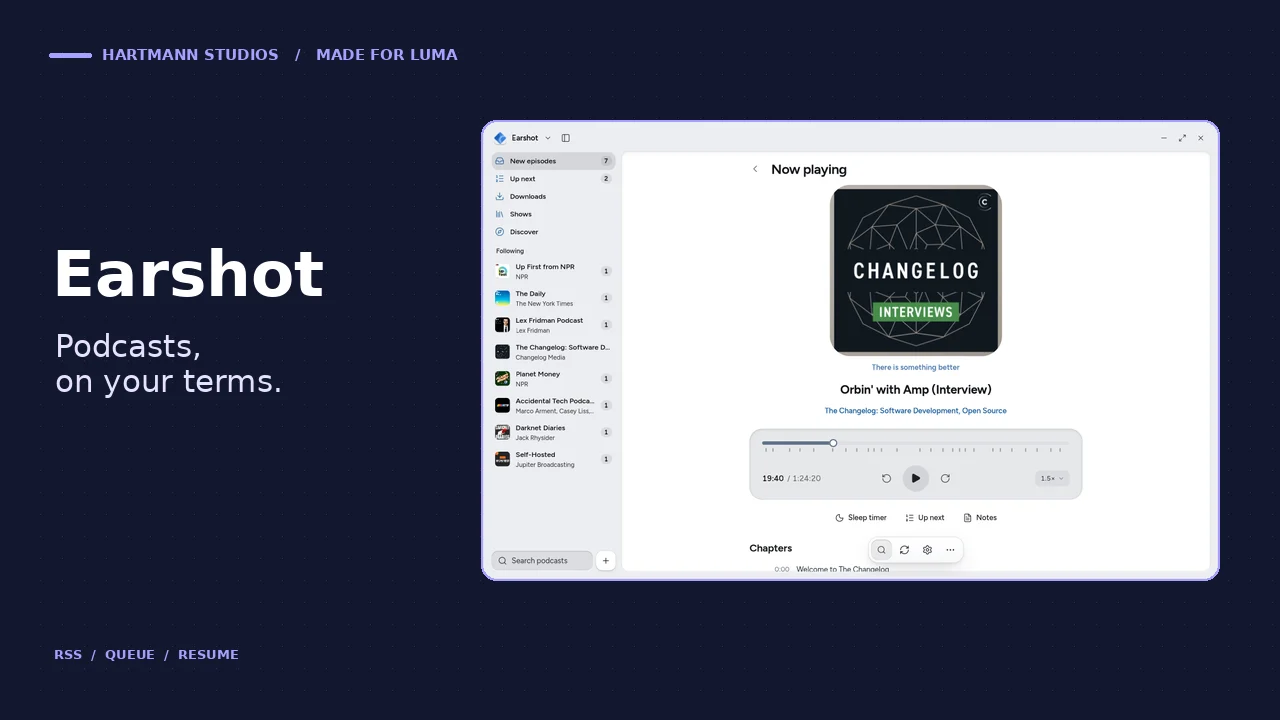
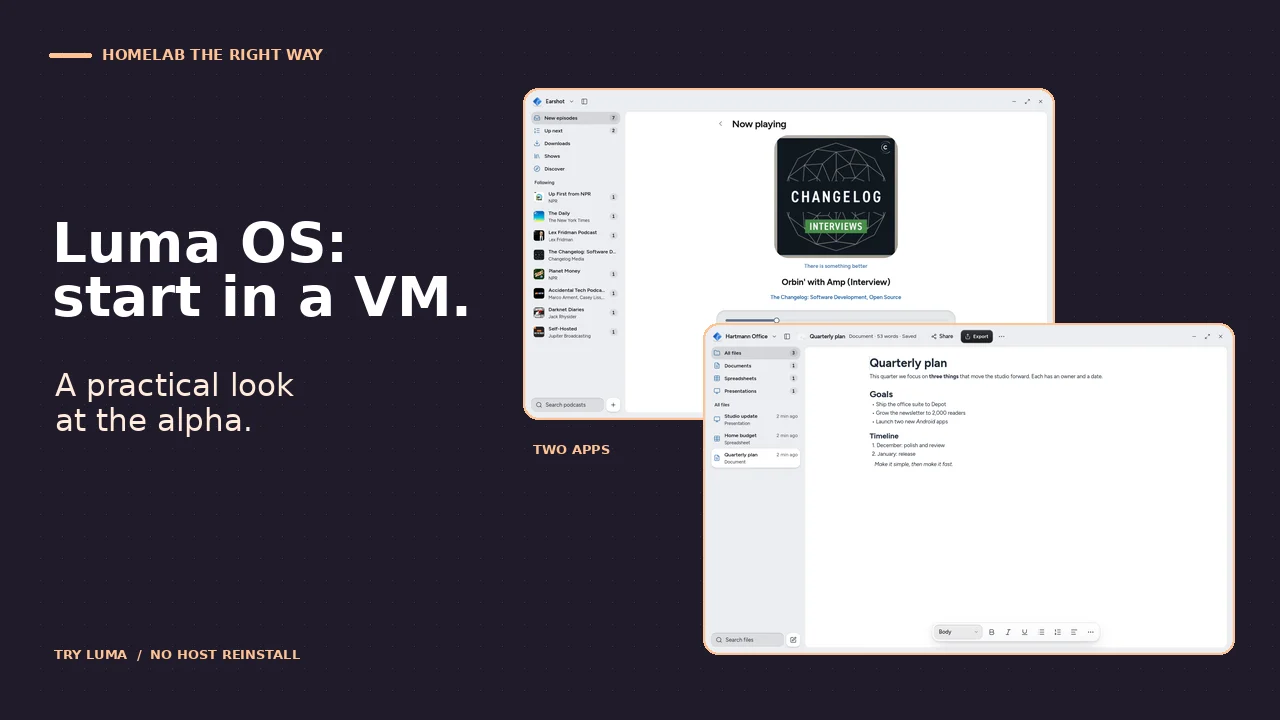
Earshot is a podcast player with direct RSS, a queue and saved playback position. In our original x86_64 Luma VM, we used it to follow Homelab the Right Way, play an episode, and reopen the same episode at the saved position. That’s a guest test; it doesn’t tell us how Bluetooth or playback behaves on every device.
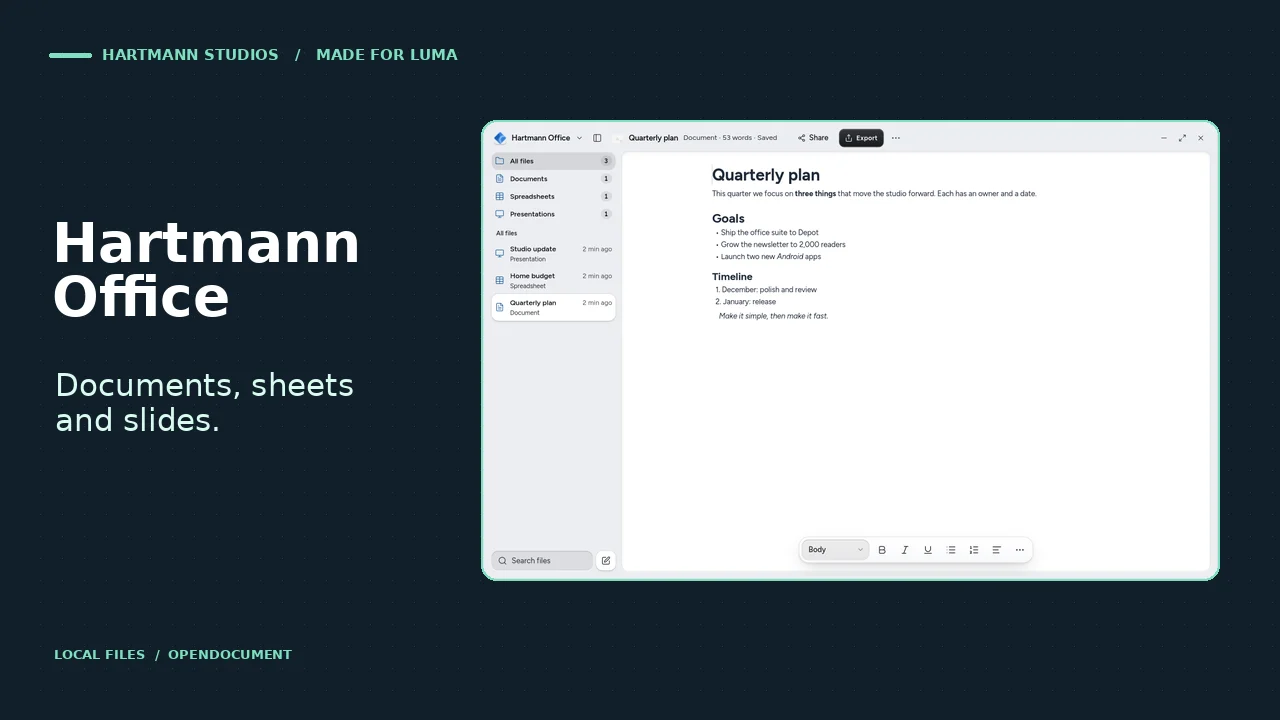
Hartmann Office has local document, spreadsheet and slide editors. It uses OpenDocument files and is built for Luma’s interface. Both projects have public GitHub releases you can reach from our Apps page. We checked that the newer ARM packages import; we’re not calling that an ARM device test, or calling either app available in Depot.
If you’re building instead of browsing, use Luma’s developer docs for the SDK and packaging guide. My recommendation for a first look: spend it in a VM with one app and one task. You’ll learn more from whether an episode resumes or a file opens cleanly than from how many screens you click through.