Real HTTPS for your homelab without opening a single port
Self-signed warnings, a private CA nobody can install, or port forwarding? None of them. Here is the fix from Containers Without the Chaos - Caddy, a DNS-01 wildcard certificate and split DNS, so every internal app gets a real padlock and nothing is exposed.
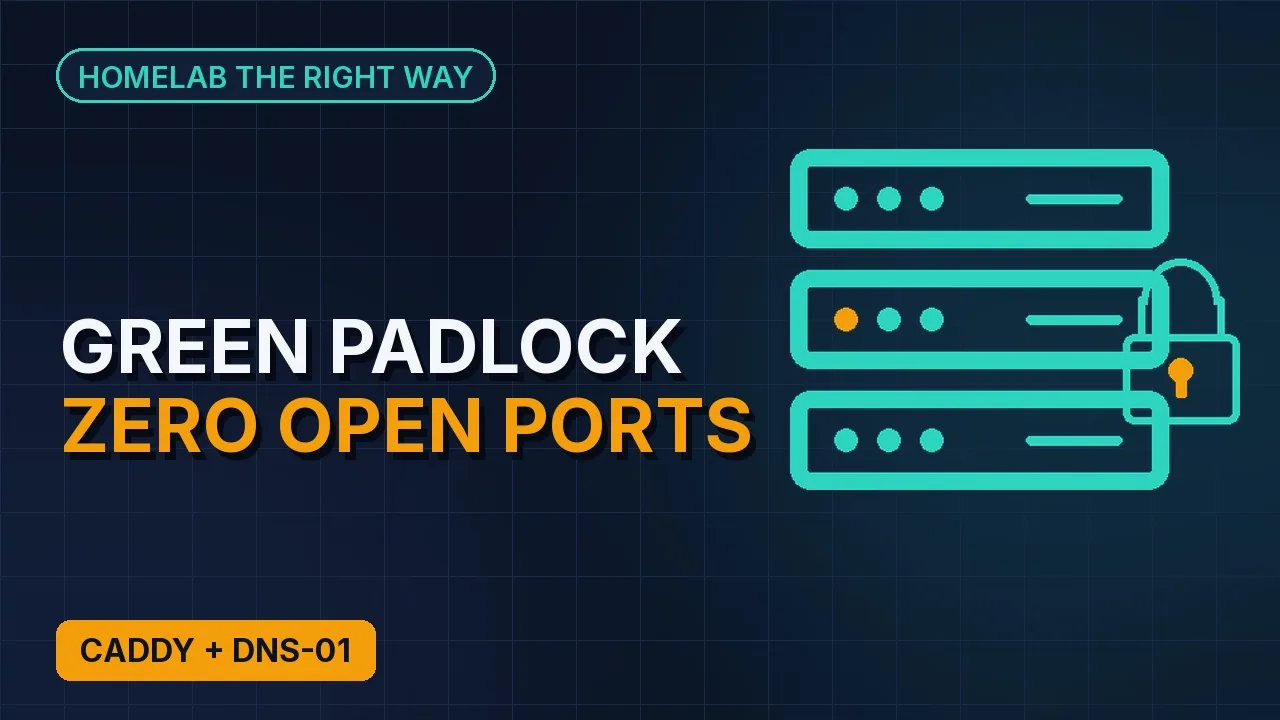
You want https://notes.home.example.com to open with a padlock and no warning on every device in the house, including the phones of guests you will never install a certificate on. And you want it without opening a single port to the internet. Containers Without the Chaos covers this in two chapters: a reverse proxy done right, then real HTTPS for internal names.
The trap: three half-solutions
There are three common ways people try this, and each one fails in its own way:
- Self-signed certificates. Every browser warns, every family member learns to click "continue anyway", and that habit is the real security problem.
- A private certificate authority. It works, but every device needs the CA installed, and many phones, TVs and apps make that hard.
- Port forwarding 80 and 443 so the normal HTTP challenge works. Now your internal apps are reachable from the internet, which is the opposite of the goal.
The fix: the DNS-01 challenge
To issue a certificate, a public certificate authority such as Let's Encrypt has to check that you control the name. With the DNS challenge, the CA does an authoritative DNS lookup for a special TXT record, and if it sees the expected value, it issues the certificate. No open ports, and the server asking for the certificate never has to be reachable from outside.
You need two things:
- A real domain you own, with its DNS hosted at a provider that has an API and a Caddy DNS module (Cloudflare and many others have one; the module list is on caddyserver.com/download).
- An API token that lets Caddy create and delete TXT records in that zone.
Names under .local, .internal and .home.arpa cannot get publicly trusted certificates. Use a subdomain of a real domain you own, such as home.example.com.
One wildcard for everything
Instead of one certificate per app, ask for one wildcard: *.home.example.com. It covers notes.home.example.com, photos.home.example.com and anything you add later. Wildcards require the DNS challenge, and a certificate may have only one wildcard, as the left-most label.
There is a privacy bonus. Certificates are published in public Certificate Transparency logs, so per-app certificates would list every internal app name for anyone to read. A wildcard reveals only *.home.example.com.
Build Caddy with a DNS module
The standard Caddy image does not include DNS provider modules, so build your own with the official builder image and xcaddy. Create /srv/stacks/proxy/Dockerfile (Cloudflare shown; use your provider's module):
FROM caddy:2.11-builder AS builder
RUN xcaddy build \
    --with github.com/caddy-dns/cloudflare

FROM caddy:2.11
COPY --from=builder /usr/bin/caddy /usr/bin/caddy
Point the proxy stack at it instead of the plain image. Ports, volumes and networks stay as in the proxy chapter (80, 443 and 443/udp; the ./conf folder mounted at /etc/caddy; ./data for certificates; the external proxy network):
services:
  caddy:
    build: .
    image: local/caddy-dns:2.11
    restart: unless-stopped
    env_file: ./caddy.env
Build, start and confirm the module is in:
docker compose build --pull
docker compose up -d
docker compose exec caddy caddy list-modules | grep dns
The API token
Create a token at your DNS provider that can edit DNS records in this one zone and nothing else. Put it in caddy.env, readable only by you, and keep the file out of Git:
CF_API_TOKEN=paste-the-token-herechmod 600 /srv/stacks/proxy/caddy.envThat token can change DNS for your whole domain. Scope it to the single zone and to DNS edit only. If it leaks, revoke it at the provider and create a new one.
The wildcard Caddyfile
Put every internal site inside one wildcard site block and pick the app with a host matcher. This is the pattern from Caddy's "Common Caddyfile Patterns" page:
*.home.example.com {
    tls {
        dns cloudflare {env.CF_API_TOKEN}
    }

    @notes host notes.home.example.com
    handle @notes {
        reverse_proxy notes:8080
    }

    @photos host photos.home.example.com
    handle @photos {
        reverse_proxy photos:2283
    }

    handle {
        abort
    }
}
The last handle block catches any name you have not defined and closes the connection, so a typo does not land on some other app. Since Caddy 2.10, separate site blocks per app also use an automated wildcard certificate; the single block just keeps the tls settings in one place.
Reload without downtime and watch for the certificate:
docker compose exec -w /etc/caddy caddy caddy reload
docker compose logs caddy | grep -i -E "certificate|obtain"
While testing, add acme_ca https://acme-staging-v02.api.letsencrypt.org/directory inside the tls block. Staging certificates are not trusted by browsers, but staging has much looser rate limits. Remove the line once it works. And never delete ./data to "start fresh": it holds every certificate Caddy has obtained, and certificate authorities enforce rate limits.
Split DNS: names that only exist at home
The certificate proves the names are yours. Now your network has to answer them. Your public DNS zone does not need any record for *.home.example.com at all; only your local resolver answers it, pointing every name at the Docker VM.
On OPNsense with Unbound, add one host override: host *, domain home.example.com, address 192.168.20.10. If your resolver does not support wildcard overrides, add one override per app. In plain Unbound configuration it looks like this:
server:
  local-zone: "home.example.com." redirect
  local-data: "home.example.com. 300 IN A 192.168.20.10"
Check from a laptop on the LAN:
dig +short notes.home.example.com
# 192.168.20.10
curl -I https://notes.home.example.com
If a name resolves on the Docker VM but not on a laptop, suspect DNS rebinding protection. Some resolvers and routers refuse answers that point a public domain at a private address. Check the resolver's rebind settings and allow your internal domain.
Away from home
Nothing here is reachable from the internet, by design. To use these names away from home, connect to your network over WireGuard or Tailscale and make sure the VPN hands out your local resolver. The same names and the same certificate then work everywhere.
Checklist
- A subdomain of a real domain you own, never
.local,.internalor.home.arpa - Caddy built with your DNS provider's module, and
caddy list-modules | grep dnsshows it - An API token scoped to one zone and DNS edit only, in
caddy.envwithchmod 600, kept out of Git - One
*.home.example.comblock with a host matcher per app and a finalhandle { abort } - Staging CA while testing, removed once the certificate arrives;
./datakept and backed up - A local DNS override pointing
*.home.example.comat the Docker VM, nothing in the public zone - Rebind protection allows your internal domain;
digandcurl -Ipass from a laptop - Remote access through WireGuard or Tailscale, handing out your local resolver
- No ports 80 or 443 forwarded from the internet